Navigation
- Navigation
- Introduction {#introduction}
- Quick example of how I use it here {#quick-example}
- devcontainer.json file {#devcontainerjson-file}
- What the file does {#what-the-file-does}
- Extensions in the container {#extensions-in-container}
- Opening the project in the container {#opening-the-project-in-container}
- Why use it {#why-use}
- Conclusion {#conclusion}
Introduction
Man, I recently discovered Dev Container and my world turned upside down. I always had problems with development environments, especially when it came to setting everything up from scratch. I’m still getting used to having the environment configured this way, but it’s pretty cool to see it working.
The idea is that you have a Docker container running with all the necessary dependencies for your project, and you can open this container directly in VS Code. This means you no longer need to worry about installing everything on your local machine, which is a lifesaver. It reminds me a lot of what’s done with WSL development, but with the advantage of being lighter and easier to configure.
Quick example of how I use it here
When I created the blog I didn’t want to mix the amount of stuff I had on my machine, a buddy suggested using Dev Container (actually it was to solve a work mess, but I ended up using it for everything). The idea was to have a container running Hugo, and I just needed to open VSCode inside this container. That way, I could edit the blog files without worrying about Hugo dependencies on my local machine.
devcontainer.json file
The Dev Container configuration is done through a file called devcontainer.json, which is inside the .devcontainer folder. This file contains the information to create the container, such as the base image, the VS Code extensions you want to install, and the commands that should run when the container is started.
{
  "name": "Blog",
  "image": "mcr.microsoft.com/devcontainers/base:alpine-3.20",
  // "features": {},
  // "forwardPorts": [],
  "postCreateCommand": "apk add --no-cache --repository=https://dl-cdn.alpinelinux.org/alpine/edge/community hugo",
  "customizations": {
    "vscode": {
      "extensions": [
        "gydunhn.hugo-essentials"
      ]
    }
  },
  "remoteUser": "root"
}
The coolest part is that you can use Dev Container in any project, not just the blog. You can create a container for any language or framework, and the configuration process is quite similar.
What the file does
Quickly explaining each field:
name: the container name that will appear in VSCode.image: the container’s base image. Here I used Alpine Linux because it’s lightweight and fast.features: additional features to install in the container. I didn’t use anything, but you can include Node.js, Python, etc.forwardPorts: ports you want to expose from the container. I usually don’t expose anything; Dev Container automatically detects and asks if you want to expose.postCreateCommand: command executed after creating the container. I’m installing Hugo so it’s already available on the command line. You can, for example, install your node modules here so the project opens ready.customizations: VS Code extensions to install in the container. I used the Hugo Essentials extension; below I show how to find the extension names.remoteUser: the user that will be used inside the container.
Extensions in the container
To define your extensions, you can use the VS Code Marketplace with extension namecode --list-extensions command in the VS Code terminal. This lists all extensions installed on your local machine; copy the names to devcontainer.json.
If you want a specific extension, search in the VS Code marketplace and copy the identifier that’s on the right side of the screen.
for example: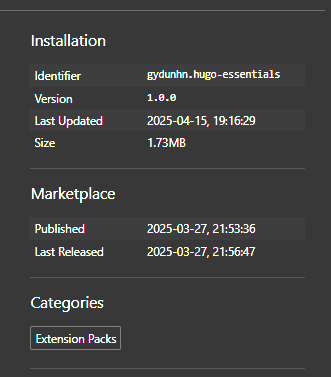
Opening the project in the container
After everything is installed, press F1 and search for Dev Containers: Reopen in Container. This opens the container you just configured and installs the extensions defined in devcontainer.json.
Here, the setup installs Hugo right after opening the container and then the Hugo Essentials extension. Many people take the opportunity to install project dependencies, like npm install or yarn install.
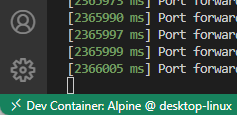
Dev Container on VS Code running inside alpine
Why use it
With this, even in a Windows development environment you can simulate exactly the same environment you would have on a Linux server (or production). It’s quite useful.
Conclusion
Since I struggled like hell to put a single image, the post ends here. You can take a look at the DevContainer documentation here and see how it works.
I’ll be back here soon and update with more information, but for now that’s it.